How to Add NOL Card to Samsung Wallet (Step-by-Step)
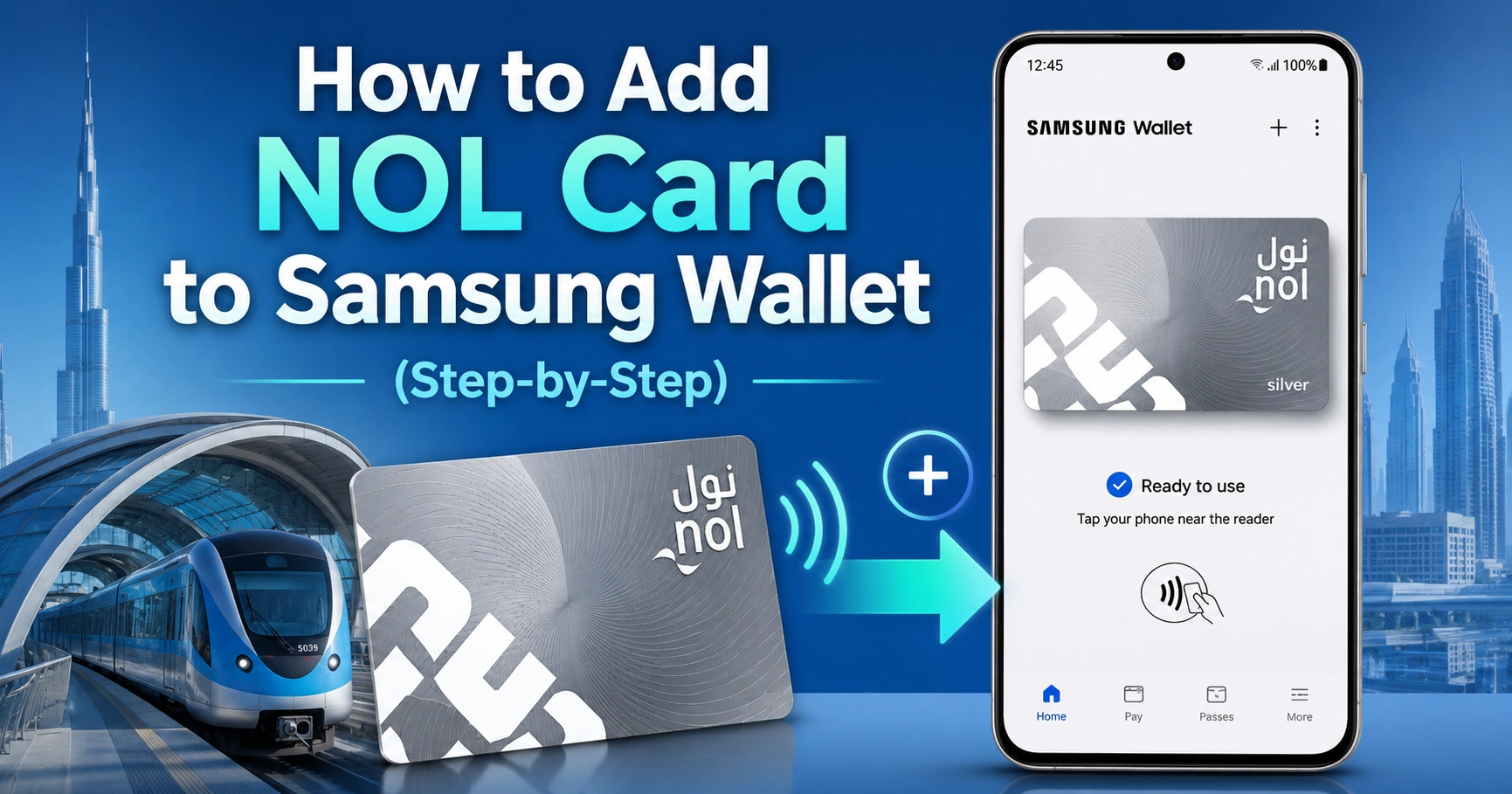
You can add an eligible NOL card to Samsung Wallet on a supported Samsung Galaxy phone. The current process starts in Samsung Wallet, then uses NOL Pay to verify and digitise your physical Silver or Gold card.
Open Samsung Wallet, select Transport card, tap Add NOL Card, and follow the instructions shown on the screen. After activation, you can tap your Galaxy phone at Dubai Metro gates, bus validators, tram stations, and supported NOL payment terminals without opening an app.
Quick Steps to Add NOL Card to Samsung Wallet
To add your NOL card:
- Update your Galaxy phone to Android 16 or later.
- Update Samsung Wallet to version 6.2.68 or later.
- Turn on NFC.
- Set Samsung Wallet as the default contactless wallet.
- Install or update the NOL Pay app.
- Open Samsung Wallet.
- Tap Transport card.
- Select Add NOL Card.
- Sign in through NOL Pay using UAE Pass.
- Scan your physical Silver or Gold NOL card.
- Confirm that the physical card will be deactivated.
- Wait for the digital NOL card to be issued.
The plastic card becomes unusable after successful digitisation. Only continue when you are ready to use your Samsung phone as your main NOL card.
Before travelling, check your Nol Card Balance to ensure you have enough credit for Metro, bus, or tram journeys. Keeping a sufficient balance on your digital NOL card helps prevent failed taps at gates and contactless readers.
Can You Add a NOL Card Directly to Samsung Wallet?
Yes, the current setup can be started directly from Samsung Wallet. However, NOL Pay still handles the card verification and digitisation process in the background.
This means Samsung Wallet is where you access and use the transport card, while NOL Pay connects the physical card to RTA’s digital NOL system. Earlier instructions that begin inside NOL Pay describe the previous setup route, which may still appear on some Galaxy devices.
The current flow is:
Samsung Wallet → Transport card → Add NOL Card → NOL Pay verification → NFC card scan → Digital NOL card
Samsung’s current instructions direct users to start from the Transport card section in Samsung Wallet, while the NOL Pay process remains responsible for scanning eligible physical cards.
Requirements Before Adding Your NOL Card
Your phone, software, account region, and physical card must meet the required conditions. Having NFC alone does not guarantee that the NOL transport card option will appear.
| Requirement | What You Need |
|---|---|
| Galaxy phone | A Samsung model that supports the NOL transport card feature |
| Android version | Android 16 or later for the current Samsung Wallet integration |
| Samsung Wallet | Version 6.2.68 or later |
| NFC | Enabled in phone settings |
| Default wallet | Samsung Wallet selected for contactless payments |
| NOL card type | Silver or Gold physical NOL card |
| Supporting apps | Updated Samsung Wallet, NOL Pay, and UAE Pass |
| Region | UAE-supported device firmware and Samsung account region |
| Internet | Active connection during setup and card issuance |
Supported Samsung Galaxy Phone
Samsung Wallet may work on a phone without supporting the NOL transport card feature. The NOL integration has its own device and software requirements.
Samsung currently lists compatible models across several Galaxy families, including selected:
- Galaxy S25, S24, S23, S22, S21, S20, and S10 models
- Galaxy Note10 models
- Galaxy Z Fold and Z Flip models
- Galaxy A56 and Galaxy A36
Compatibility can depend on the exact model number, UAE firmware, carrier, software version, and Samsung account region. Samsung’s NOL setup page currently requires Android 16 or later and Samsung Wallet version 6.2.68 or higher.
Silver or Gold NOL Card
Only the following physical cards can currently be digitised:
- Silver NOL card
- Gold NOL card
Blue personalised cards and Red tickets cannot be converted using the standard Samsung digitisation process. Samsung’s NOL Pay instructions specifically limit physical card digitisation to Silver and Gold cards.
This restriction matters for students, senior citizens, People of Determination, and other passengers using personalised fare concessions. They may need to continue using their physical Blue NOL card to receive the applicable discount.
Updated Samsung Wallet
The latest NOL transport card integration requires Samsung Wallet version 6.2.68 or later.
To check for an update:
- Open the Galaxy Store.
- Search for Samsung Wallet.
- Open the app listing.
- Tap Update if the option appears.
- Restart Samsung Wallet after updating.
An outdated version may still support bank cards while failing to show the Transport card or Add NOL Card option.
Android 16 or Later
Check your software version before beginning:
- Open Settings.
- Tap About phone.
- Select Software information.
- Check the Android version.
- Install any available system update.
General Samsung Wallet support may be available on older Android versions, but that does not mean the latest NOL card integration will work. The NOL feature currently has stricter software requirements than ordinary Samsung Wallet payments.
NOL Pay and UAE Pass
NOL Pay is required to verify and digitise the physical transport card. UAE Pass is used to authenticate the user during the login and card issuance process.
Before starting:
- Install or update NOL Pay.
- Install or update UAE Pass.
- Confirm that UAE Pass is activated.
- Use the mobile number connected to your UAE Pass account.
- Allow NOL Pay to access NFC when requested.
Samsung’s setup instructions require users to sign in to NOL Pay through UAE Pass before digitising a physical NOL card.
How to Add NOL Card to Samsung Wallet
Follow the steps in order. Do not remove the card, close the app, or switch off NFC while the physical card is being scanned.
Step 1: Update Your Samsung Galaxy Phone
Go to Settings → Software update → Download and install.
Complete all available updates and restart the phone. Check that the device is now running Android 16 or a later supported version.
Step 2: Update Samsung Wallet and NOL Pay
Open the Galaxy Store or Google Play Store and update:
- Samsung Wallet
- NOL Pay
- UAE Pass
Restarting the phone after major app or Android updates can help Samsung Wallet load newly available transport features.
Step 3: Turn On NFC
Open:
Settings → Connections → NFC and contactless payments
Switch NFC on. Keep it enabled whenever you plan to use the digital NOL card.
Step 4: Set Samsung Wallet as the Default Wallet
Inside NFC and contactless payments, open the default payment or default wallet setting.
Choose Samsung Wallet. This helps prevent Google Wallet, a banking app, or another contactless service from responding instead of the digital NOL card.
Step 5: Open Samsung Wallet
Launch Samsung Wallet and complete its basic setup if you have not used it before.
You may need to:
- Sign in to your Samsung account
- Accept the terms
- Create a Samsung Wallet PIN
- Enable fingerprint verification
- Allow NFC and notification permissions
Step 6: Select Transport Card
From the Samsung Wallet home screen or menu:
- Tap Transport card.
- Select Add NOL Card.
- Read the eligibility notice.
- Tap the button to continue.
The exact button position can vary slightly after a Samsung Wallet interface update.
Step 7: Continue in NOL Pay
Samsung Wallet may open NOL Pay automatically. Sign in using UAE Pass when requested.
If the app does not open automatically, update NOL Pay and repeat the process from Samsung Wallet.
Step 8: Choose to Digitise Your Physical Card
Inside NOL Pay, select the option for an existing physical card. Depending on the app version, it may appear as:
- Get My NOL Card
- Digitise My Physical NOL Card
- Add Existing NOL Card
Read the warning confirming that only Silver and Gold cards are eligible.
Step 9: Scan the Physical NOL Card
Remove any thick, magnetic, metal, or wallet-style phone case before scanning.
Place the physical NOL card flat against the back of the phone. Move it slowly around the upper or middle rear section until the NFC reader detects it.
Once detected:
- Keep the card completely still.
- Do not lock the phone.
- Do not leave the app.
- Wait for the reading process to finish.
- Review the card information shown.
The app reads the eligible card data and prepares the digital version. The card’s available balance and qualifying travel products should be reviewed before you approve the transfer.
Step 10: Confirm Physical Card Deactivation
NOL Pay will warn you that the physical card will no longer work after successful digitisation.
Confirm only after checking that:
- You scanned the intended card.
- The displayed balance is correct.
- The card is Silver or Gold.
- You are ready to depend on the phone for travel.
- Your phone is a device you use regularly.
Once the transfer is completed, the same plastic card cannot be used at Metro gates, bus validators, ticket machines, or merchant terminals.
Step 11: Wait for Digital Card Issuance
The digital card may take a few minutes to be issued and downloaded to the phone.
Keep the internet connection active and avoid closing NOL Pay until you receive confirmation. Samsung’s digitisation instructions state that the physical card becomes unusable once it is read and approved, followed by the issuance of the digital card to the device.
Step 12: Check the Card in Samsung Wallet
Return to Samsung Wallet and open Transport card.
Check that the digital NOL card is visible and active. Also confirm that Samsung Wallet remains selected as the default wallet under NFC settings.
Alternative Method Through the NOL Pay App
Some phones may show the digitisation option in NOL Pay before the NOL card appears in Samsung Wallet.
You can try the following route:
- Open NOL Pay.
- Sign in using UAE Pass.
- Tap Get My NOL Card.
- Select Digitise My Physical NOL Card.
- Confirm that the card is Silver or Gold.
- Place the card against the phone’s NFC area.
- Wait for the card to be read.
- Approve physical card deactivation.
- Wait for digital card issuance.
- Open Samsung Wallet and check the Transport card section.
The availability of this alternative depends on the phone model, NOL Pay version, Samsung Wallet version, and UAE device configuration.
What Happens to Your Balance and Travel Pass?
During digitisation, NOL Pay reads the eligible data stored against the card. This can include the available balance and supported travel products associated with the Silver or Gold card.
Review everything displayed before approving the transfer. Do not continue when the balance, card type, or active pass shown in the app appears incorrect.
After digitisation:
- The digital card becomes the active NOL card.
- The physical card becomes inactive.
- Future top-ups should be made to the digital card.
- Card management is completed through NOL Pay or supported RTA channels.
- Travel taps are made using the Samsung phone.
Physical NOL Card vs Digital NOL Card
| Feature | Physical NOL Card | Digital NOL Card |
|---|---|---|
| Device needed | No | Compatible Samsung Galaxy phone |
| Tap method | Tap plastic card | Tap the back of the phone |
| NFC required | No phone required | NFC must be enabled |
| Eligible card types | Silver, Gold, Blue, and Red | Silver and Gold digitisation |
| App required | Not for travel | Required for setup and management |
| Battery dependency | None | Phone must be operational |
| After digitisation | Original card becomes inactive | Digital card becomes the active version |
| Daily convenience | Requires carrying card | Stored on the phone |
How to Use Your Digital NOL Card
Once activated, you normally do not need to open Samsung Wallet before every journey.
For a reliable tap:
- Keep NFC switched on.
- Hold the back of the phone flat against the reader.
- Keep the device still until you hear the confirmation sound.
- Wait for the green light or successful message.
- Tap out with the same phone at your destination.
Samsung states that the digital NOL card can be used by tapping the Galaxy phone without opening an app. It supports buses, Dubai Metro, trams, and many participating shops.
Where You Can Use It
The digital card can be used at compatible NOL readers, including:
- Dubai Metro entry and exit gates
- Dubai Tram validators
- RTA bus validators
- Participating shops and merchants
- Other supported NOL contactless terminals
Availability can vary by reader and service. Keep the original plastic card separate after digitisation so you do not accidentally attempt to use the deactivated card.
Important Rules and Limitations
The Plastic Card Stops Working
Digitisation is a conversion, not the creation of a second copy.
Your phone and plastic card cannot remain active as two versions of the same NOL card. Once the digital card is issued, the original physical card is no longer usable.
Blue Cards and Red Tickets Are Not Supported
A Blue personalised card cannot currently be digitised through the standard Silver and Gold card process. A Red ticket is also not eligible.
Passengers using personalised concessions should not replace their Blue card with a regular digital card without checking how it affects their fare entitlement.
Samsung Wallet Support Does Not Guarantee NOL Support
A Galaxy phone may support Samsung Wallet for bank cards but still fail to support the NOL transport card.
NOL availability depends on:
- Exact Galaxy model
- Android version
- Samsung Wallet version
- NFC hardware
- Device firmware
- Samsung account country
- Regional software configuration
- UAE service availability
You Need the Phone for Every Tap
After the physical card is deactivated, your phone becomes the card used for entry and exit.
Keep the device charged before travelling. Carrying a separate active physical card can be useful as a backup, but it must be a different NOL card.
Troubleshooting NOL Card and Samsung Wallet Problems
Add NOL Card Option Is Missing
Try these fixes:
- Update the phone to Android 16 or later.
- Update Samsung Wallet to version 6.2.68 or later.
- Restart the phone.
- Confirm that NFC is enabled.
- Set Samsung Wallet as the default wallet.
- Check that the Samsung account region is set to the UAE.
- Confirm that the model appears among supported Galaxy devices.
- Clear the Samsung Wallet cache and reopen the app.
A phone purchased for another market may use regional firmware that does not display the UAE NOL option.
NOL Pay Cannot Read the Physical Card
NFC scanning problems are commonly caused by incorrect positioning or interference from the phone case.
Try the following:
- Remove magnetic, metal, or thick cases.
- Remove other cards from the phone cover.
- Switch NFC off and on again.
- Place the card slowly around the rear NFC antenna.
- Hold the card still for several seconds.
- Keep the screen unlocked.
- Close other contactless apps.
- Restart NOL Pay.
- Check the physical card for cracks or bending.
Samsung recommends checking NFC settings, the default payment app, phone positioning, and third-party covers when contactless scanning fails.
Metro Gate Does Not Detect the Phone
First confirm that NFC is on and Samsung Wallet remains the default wallet.
Then:
- Wake the phone screen.
- Hold the back of the phone flat on the reader.
- Keep it still until the reader responds.
- Remove the phone case.
- Open Samsung Wallet and try again.
- Check that the digital card has enough balance.
- Confirm that any travel pass is still valid.
Do not repeatedly tap different areas too quickly. Pause, reposition the phone, and allow the reader enough time to detect the NFC antenna.
Samsung Wallet Opens the Wrong Card
This can happen when a bank card, Google Wallet, or another payment app is competing for the contactless reader.
Open Settings → Connections → NFC and contactless payments, then choose Samsung Wallet as the default wallet. Close other payment apps before tapping again.
NOL Pay Shows the Wrong Balance
Refresh the app and confirm that you are viewing the correct digital card.
If the displayed amount remains different from the expected balance, avoid starting another digitisation request. Check the card again after reconnecting to the internet or seek assistance through an RTA service channel.
You Scanned the Wrong Physical Card
Do not approve the final deactivation screen when you notice the wrong card before completion.
If digitisation has already finished, stop using the card and request help through NOL Pay or an RTA customer service channel. Do not attempt to scan another physical card repeatedly while the first digital card remains active.
The Phone Was Lost, Reset, or Replaced
A digital NOL card is connected to its issued device and digital setup. Changing phones may require a recovery, transfer, reissuance, or support process rather than scanning the inactive plastic card again.
Secure the lost phone through your Samsung account and contact the appropriate support channel before attempting to create another digital NOL card.
Tips for Using a Digital NOL Card Reliably
- Keep Android, Samsung Wallet, and NOL Pay updated.
- Leave NFC enabled before starting your journey.
- Check the balance before reaching the station.
- Recharge early instead of waiting until the balance is too low.
- Use the same phone for tapping in and tapping out.
- Avoid magnetic cases and card-holder covers.
- Do not place another contactless card against the phone.
- Keep a different active NOL card as an emergency backup.
- Check the digital card after major phone updates.
- Never uninstall or reset wallet apps during an incomplete card transfer.
Frequently Asked Questions
Can I add a NOL card directly to Samsung Wallet?
Yes. The current method for how to add NOL card to Samsung Wallet starts inside Samsung Wallet under Transport card. The setup then opens or uses NOL Pay to verify and digitise an eligible physical card. After activation, the digital NOL card appears on the supported Galaxy phone for contactless travel.
Which NOL cards can be added to Samsung Wallet?
Only Silver and Gold cards are currently eligible for digitisation. When learning how to add NOL card to Samsung Wallet, Blue personalised cards and Red tickets should not be scanned because they are not supported. Users who depend on student, senior, or concession benefits may need to continue carrying their physical Blue card.
Will my physical NOL card still work after digitisation?
No. A key warning in the how to add NOL card to Samsung Wallet process is that the original Silver or Gold card becomes unusable after successful digitisation. Its digital replacement becomes the active card on your phone, so do not complete the transfer unless you are ready to stop using the plastic card.
Why is the Add NOL Card option missing in Samsung Wallet?
The option may be missing because your phone is not on Android 16, Samsung Wallet is outdated, the device or account region is unsupported, or your Galaxy model is not eligible. Before repeating how to add NOL card to Samsung Wallet, update the phone, update Wallet, enable NFC, and confirm the UAE region settings.
Do I need UAE Pass to add a NOL card?
UAE Pass is normally required when NOL Pay asks you to sign in and verify the digitisation request. During how to add NOL card to Samsung Wallet, keep UAE Pass installed, active, and linked to your current mobile number. Authentication problems can prevent NOL Pay from completing the card transfer and issuing the digital card.
Can I use a digital NOL card without opening Samsung Wallet?
Yes. After completing how to add NOL card to Samsung Wallet, you generally do not need to open Samsung Wallet for every journey. Keep NFC enabled and hold the phone correctly against the reader. If a gate does not respond, wake the screen, open Wallet or NOL Pay, and try the tap again.
Can I add my NOL card to a Samsung Galaxy Watch?
The how to add NOL card to Samsung Wallet instructions are designed for compatible Galaxy phones. Do not assume the same NOL transport card can be installed on a Galaxy Watch, even when Samsung Wallet is available on the watch. Check the Transport card menu on the wearable before relying on it for a journey.