How to Add NOL Card in Apple Wallet on iPhone
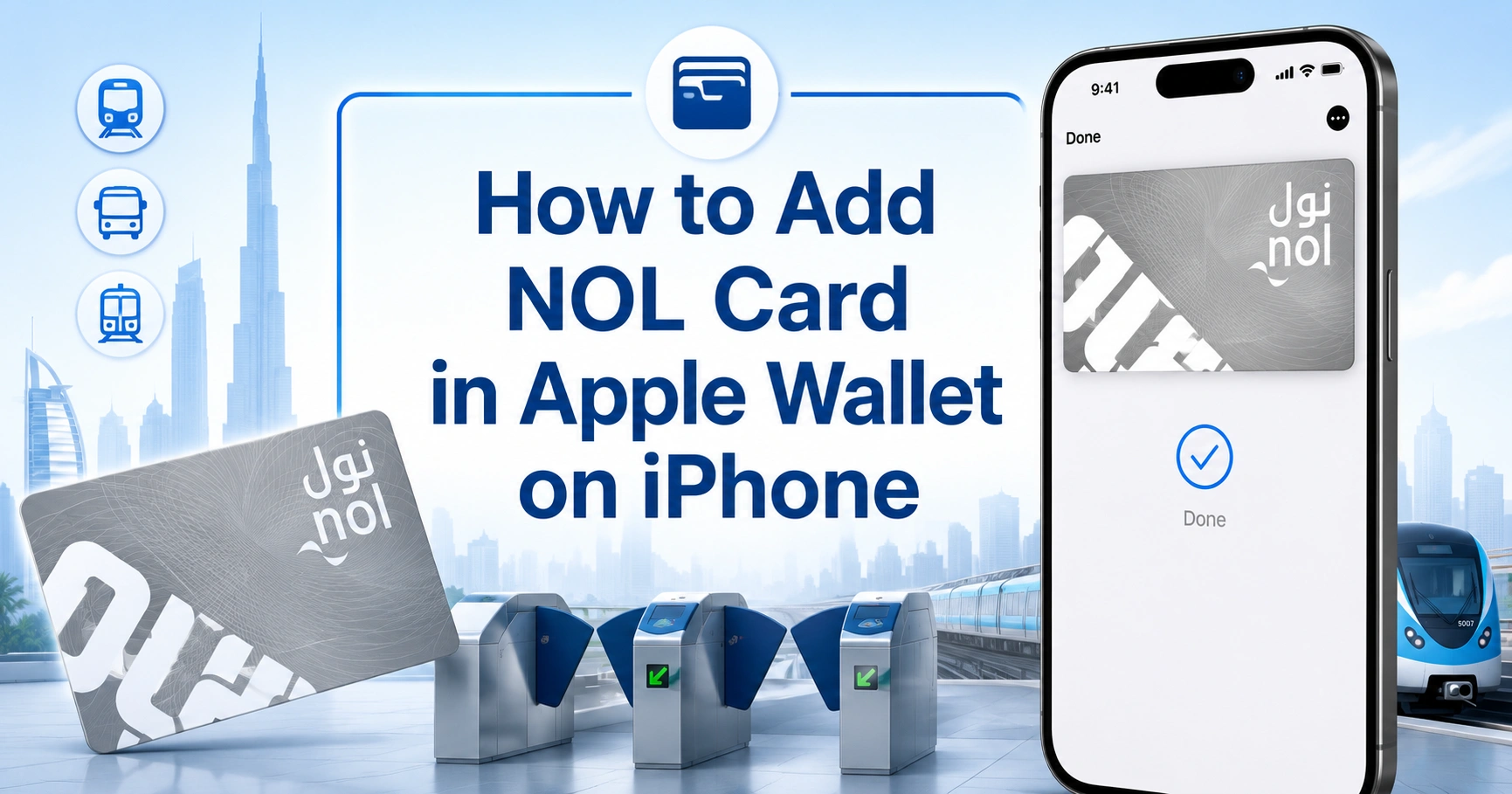
You cannot currently add a Dubai NOL card directly to Apple Wallet as a transit card. NOL does not appear in Apple Wallet’s supported transit card list, and an iPhone cannot yet replace your physical card at Dubai Metro, bus, or tram readers.
However, iPhone users can install the official nol Pay app to check a physical card, recharge it through NFC, purchase travel passes, register the card, and manage other NOL services. Apple Pay can also be used as a payment method when topping up through selected RTA apps, but this does not place the NOL card inside Apple Wallet.
Before topping up or travelling, check your Nol Card Balance to confirm that you have enough credit for your journey. This helps you avoid rejected taps at Dubai Metro gates, buses, and tram readers, especially when a recent online recharge is still waiting for activation.
Can You Add a NOL Card to Apple Wallet in 2026?
No, native NOL card support is not currently available in Apple Wallet. You cannot open Wallet, select Transit Card, search for NOL, and transfer your physical card to your iPhone.
Changing the iPhone region to the UAE, scanning the NOL card, or manually entering its Tag ID will not make it appear in Apple Wallet. Transit cards can only be added when Apple and the relevant transport operator officially support that card.
Here is the current situation for iPhone users:
| NOL feature on iPhone | Available? |
|---|---|
| Add NOL as an Apple Wallet transit card | No |
| Tap an iPhone at Dubai Metro gates | No |
| Use NOL through Apple Watch | No |
| Check a physical NOL card using nol Pay | Yes |
| Recharge a physical NOL card through NFC | Yes |
| Register or manage a NOL card | Yes |
| Pay for a recharge using Apple Pay | Yes, through selected RTA apps |
| Replace the physical card with a virtual NOL | Not currently supported on iPhone |
Apple Wallet, Apple Pay and nol Pay Are Different
Many commuters confuse Apple Wallet, Apple Pay, and the nol Pay app. Each service performs a different function.
Apple Wallet
Apple Wallet stores supported bank cards, boarding passes, tickets, keys, and selected public transport cards. A transport operator must integrate its fare system with Apple before its card can appear in Wallet.
The Dubai NOL card has not yet received this native Apple Wallet integration.
Apple Pay
Apple Pay lets you make payments using a supported bank card stored in Apple Wallet. You may use Apple Pay to pay for a NOL recharge through the RTA Dubai or S’hail app.
This only pays for the top-up. It does not convert your bank card or NOL card into a digital Dubai transport pass.
nol Pay App
The nol Pay app is the official mobile application for managing NOL services. On an NFC-compatible iPhone, it can read and recharge a physical card, display card information, purchase travel passes, and manage registered cards.
The app is available on iOS, but the virtual tap-to-travel feature is currently limited to compatible Samsung and Huawei devices.
What Can iPhone Users Do with the nol Pay App?
Although you cannot follow a direct process for how to add NOL card in Apple Wallet, the nol Pay app still provides several useful services.
You can use it to:
- Check the balance stored on a physical NOL card
- Top up a card using your iPhone’s NFC reader
- Purchase or renew a travel pass
- View card details and recent transactions
- Register an anonymous Silver or Gold card
- Manage cards linked to an RTA account
- Apply for or renew a Personal NOL card
- Manage eligible family cards
- Request selected refunds and card services
- Schedule automatic recharges where available
Your physical NOL card remains the travel credential. You must still tap the card itself when entering and leaving Dubai Metro stations, boarding buses, using the tram, or paying at supported NOL merchants.
How to Add and Manage a Physical NOL Card on an iPhone
Adding a card to the nol Pay app is not the same as adding it to Apple Wallet. It links the physical card to your RTA account so that you can manage it more easily.
Step 1: Install the nol Pay App
Open the App Store on your iPhone and search for nol Pay. Check that the developer is Dubai’s Roads and Transport Authority before installing it.
Avoid similarly named apps that are not operated by RTA.
Step 2: Sign In to Your Account
Open nol Pay and sign in using UAE Pass or your RTA account. Visitors may have access to selected services without linking a fully verified UAE Pass account.
Keep your UAE mobile number and account details available if verification is requested.
Step 3: Select the NOL Service
Choose the option to check, top up, register, or manage a NOL card. The wording may change slightly when the app interface is updated.
You can either select a card already connected to your account or scan a physical card using NFC.
Step 4: Scan the Physical Card
Remove any thick case, magnetic accessory, or wallet attachment from the iPhone. Place the NOL card flat against the upper back area of the phone and hold it still.
Do not repeatedly move the card around. It may take several seconds for the phone to read the chip.
Step 5: Save or Manage the Card
Once the card is detected, the app can display its available balance and other supported information. You can then register it, purchase a travel pass, or recharge it.
This process does not create an Apple Wallet pass and does not allow the phone to open a Metro gate.
How to Recharge a NOL Card with an iPhone
The fastest option is to use NFC so the value is loaded directly onto the physical card.
- Open the nol Pay app.
- Sign in with UAE Pass or your RTA account.
- Select Top Up.
- Choose a linked card or scan the physical card.
- Enter or select the recharge amount.
- Pay using an accepted debit or credit card.
- Scan the physical NOL card again.
- Keep the card in position until the app confirms completion.
The second scan is essential. It writes the purchased balance to the physical card, making it available immediately.
Does iPhone NFC Need to Be Turned On?
There is normally no separate NFC switch that must be enabled on an iPhone. Compatible iPhones manage NFC automatically when an approved app requests it.
Simply unlock the phone, open nol Pay, and follow the scanning instructions shown inside the app.
How to Recharge a NOL Card Using Apple Pay
Apple Pay can fund a NOL recharge even though the NOL card itself cannot be stored in Apple Wallet.
You can use this option through supported services in the RTA Dubai or S’hail app:
- Open the RTA Dubai or S’hail app.
- Select the NOL card top-up service.
- Scan the physical card through NFC or enter its Tag ID.
- Choose the recharge amount.
- Select Apple Pay on the payment screen.
- Confirm the transaction using Face ID, Touch ID, or your passcode.
- Complete the required balance activation.
When NFC is used, scan the card again after payment to load the balance instantly. A top-up made only by entering the Tag ID may take 45 minutes to four hours before it can be activated.
NOL Recharge Amounts and Activation Times
Different recharge channels have different processing and activation rules.
| Recharge method | Minimum top-up | When balance becomes usable |
|---|---|---|
| nol Pay with NFC | AED 5 | Immediately after the second card scan |
| S’hail with NFC | AED 5 | Immediately after the second card scan |
| RTA Dubai with NFC | AED 30 | Immediately after the second card scan |
| Online or Tag ID recharge | Varies by channel | Usually 45 minutes to 4 hours after activation |
| Metro ticket vending machine | Depends on machine | Immediately |
A NOL card generally needs at least AED 7.50 before it can be used for public transport. Check the available balance before approaching a Metro gate, particularly when a previous online recharge has not yet been activated.
Can You Tap an iPhone at Dubai Metro Gates?
No. An iPhone running nol Pay cannot currently be used as a virtual NOL card at Metro gates, bus validators, tram readers, or NOL payment terminals.
Opening the nol Pay app before approaching a gate does not change this restriction. The iPhone can read and update a physical card, but it does not present an approved virtual NOL travel credential to the fare reader.
Carry your physical NOL card after managing or recharging it on the iPhone.
Can You Digitise a Physical NOL Card on an iPhone?
The nol Pay app may describe card virtualisation as one of its general services, but RTA’s device-specific conditions currently restrict virtual NOL cards to compatible Samsung and Huawei phones.
Therefore, iPhone users should not convert or surrender a physical card expecting the iPhone to replace it. Your physical Silver, Gold, or Personal NOL card remains necessary for travel.
On supported Android devices, digitising an eligible physical card may permanently deactivate the plastic card. This process should only be completed after confirming that the phone model supports virtual NOL travel.
NOL Card on iPhone vs Samsung and Huawei
The main difference is not the availability of the nol Pay app. The difference is whether the phone can act as the actual travel card.
| Feature | iPhone | Compatible Samsung or Huawei phone |
|---|---|---|
| Install nol Pay | Yes | Yes |
| Check a physical card | Yes | Yes |
| Recharge using NFC | Yes | Yes |
| Register and manage cards | Yes | Yes |
| Create a supported virtual NOL card | No | Yes, on eligible devices |
| Tap the phone at public transport readers | No | Yes, with a valid virtual NOL |
| Add NOL to Apple Wallet | No | Not applicable |
| Use a physical card after digitisation | Physical card remains required | Card may become permanently invalid |
Virtual NOL top-ups are officially limited to compatible Samsung and Huawei phones, along with supported Huawei Watch models.
Why NOL Does Not Appear in Apple Wallet
NOL is missing because Apple Wallet does not accept arbitrary contactless cards. The transport authority must implement Apple’s required security, ticketing, account, and fare-validation systems before a card can be offered.
The following methods will not add NOL to Apple Wallet:
- Scanning the card with the iPhone camera
- Holding the card near the iPhone’s NFC reader
- Entering the NOL Tag ID as a card number
- Selecting “Add Other Card” in Wallet
- Creating a custom Wallet pass
- Changing the iPhone country or region
- Adding a bank card used to recharge NOL
- Following unofficial videos that show unsupported menu options
A generic Wallet pass may display a picture or barcode, but Dubai’s public transport readers will not treat it as a valid NOL card.
Common iPhone NOL Problems and Solutions
The NOL Card Will Not Scan
Remove the phone case and any magnetic accessory. Hold the card against the upper back of the iPhone without moving it.
Also check that the app is updated and that the card is not damaged, bent, expired, or already being used by another NFC application.
The Recharge Payment Succeeded but the Balance Did Not Change
You may not have completed the second NFC scan. Open the app again and follow the activation prompt.
For a Tag ID recharge, wait between 45 minutes and four hours before activating it at a Metro gate, parking meter, solar top-up machine, or supported RTA app.
The iPhone Does Not Open the Metro Gate
This is expected because iPhone tap-to-travel is not currently supported for NOL. Tap the physical NOL card on the reader instead.
Make sure the card contains at least AED 7.50 and that any pending recharge has been activated.
Apple Pay Is Available but NOL Is Not in Wallet
Apple Pay support only means the app accepts payment from a bank card in Apple Wallet. It does not mean the NOL transport card is compatible with Wallet.
These are separate technical integrations.
The App Shows a Virtual Card Option
Availability can depend on the phone model, operating system, wallet provider, and account settings. Do not deactivate a physical card unless the app clearly confirms that your specific device can issue and use a virtual NOL card.
Current RTA guidance limits virtual NOL functionality to compatible Samsung and Huawei devices.
Is Apple Wallet Support Coming to Dubai’s NOL System?
RTA is upgrading NOL from a card-based ticketing platform to an account-based system. The project includes digital user accounts, next-generation cards, QR tickets, bank-card fare payments, and support for smartphone wallets.
The wider upgrade has been targeted for completion by the end of the third quarter of 2026. However, this does not confirm that NOL can already be added to Apple Wallet or provide a specific public launch date for iPhone support.
Until a formal announcement appears and NOL becomes visible inside Apple Wallet’s Transit Card menu, iPhone users should continue carrying a physical card.
Best Setup for iPhone Users Right Now
The most practical setup is to keep your physical NOL card and use your iPhone as its management and recharge device.
Install nol Pay, link or scan the card, monitor the balance, and use NFC for instant top-ups. You can also use Apple Pay through selected RTA apps to fund a recharge, but the physical card must still be tapped during every journey.
Frequently Asked Questions
Can I add my NOL card directly to Apple Wallet?
No. As of 2026, Dubai’s NOL card is not offered as a supported Apple Wallet transit card. Although many users search for how to add NOL card in Apple Wallet, the card cannot be scanned, transferred, or entered manually. A physical NOL card is still required on iPhone.
How to add NOL card in Apple Wallet on an iPhone?
There is currently no official process for how to add NOL card in Apple Wallet. You can install nol Pay, scan your physical card, check its balance, recharge it, and manage selected services. However, the card will remain outside Apple Wallet and must be tapped physically when travelling.
Can I tap my iPhone at a Dubai Metro gate?
No. An iPhone cannot currently act as a virtual NOL card at Dubai Metro gates, buses, or tram readers. The nol Pay app can read and recharge a physical card through NFC, but it does not turn the iPhone into a valid NOL travel card. Carry the physical card.
Can I recharge a NOL card using Apple Pay?
Yes. Apple Pay may be available as a payment option when recharging through supported RTA applications such as RTA Dubai or S’hail. This pays for the recharge using a bank card stored in Apple Wallet. It does not add the NOL card itself to Apple Wallet.
Why is NOL missing from Apple Wallet’s transit card list?
NOL is missing because native integration between Apple Wallet and Dubai’s transport ticketing system has not yet launched. Changing your region, updating iOS, scanning the card, or entering its Tag ID will not add it. Only officially supported transit cards appear in Apple Wallet’s selectable card list.
Which phones support a virtual NOL card?
Virtual NOL functionality is currently available only on selected compatible Samsung and Huawei devices. iPhone users can install nol Pay and manage physical cards, but cannot use an iPhone as the actual travel card. Check device eligibility before digitising because the original plastic card may become permanently invalid.
Can I add a NOL card to an Apple Watch?
No. NOL is not currently supported as an Apple Wallet transit card on Apple Watch. Searching how to add NOL card in Apple Wallet will not produce an Apple Watch option either. Supported Huawei Watch models may use virtual NOL, but Apple Watch users must carry a physical card.
Do I need to activate a NOL recharge made on iPhone?
It depends on the recharge method. A top-up completed through NFC becomes available immediately after you scan the physical card a second time. A Tag ID or online recharge may require a wait of 45 minutes to four hours, followed by activation through an approved reader or RTA app.