NOL Pay App Download – Check Balance & Use Digital NOL
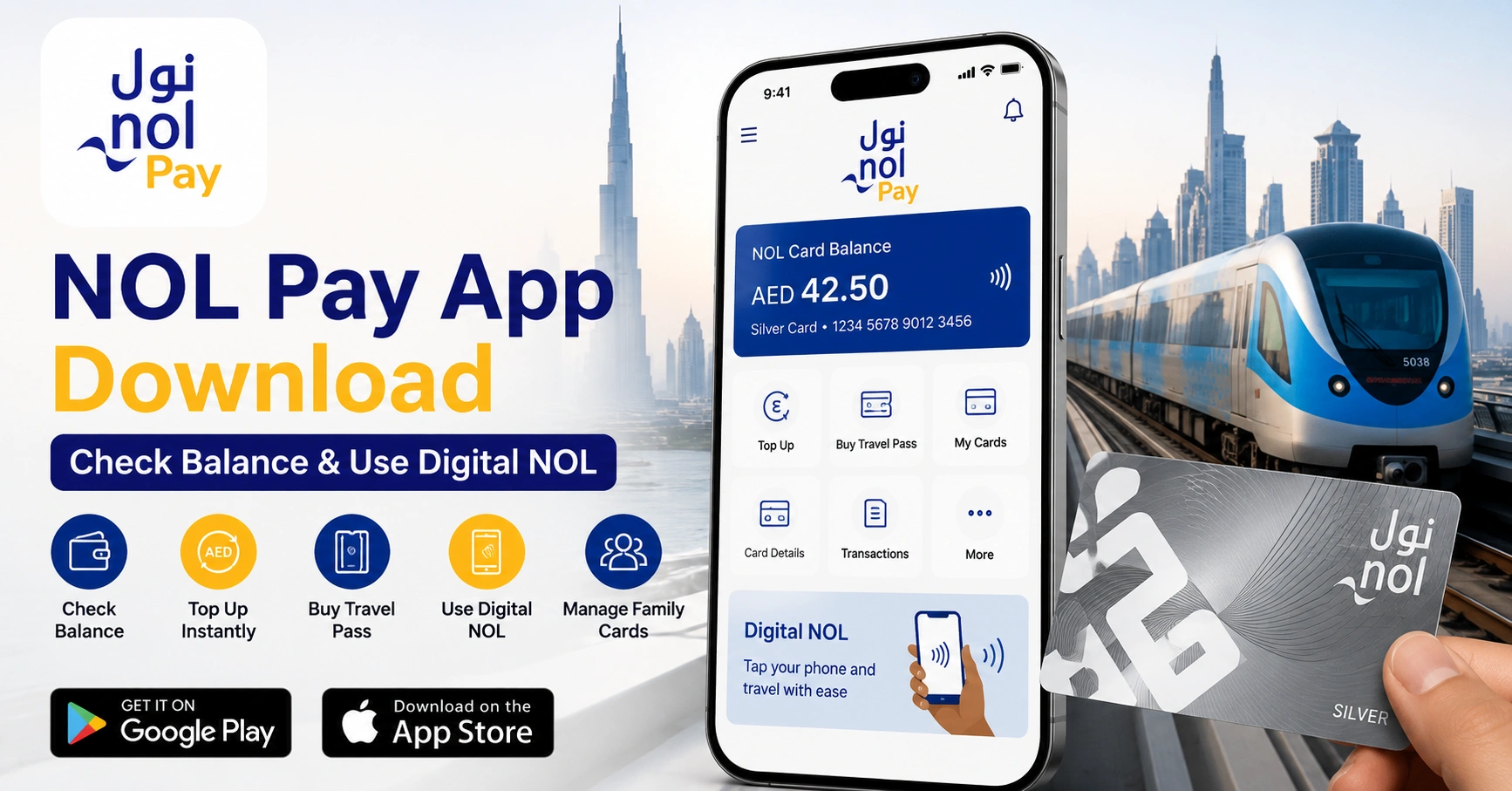
The NOL Pay app is the official Roads and Transport Authority mobile application for managing NOL cards in Dubai. It allows commuters to check card information, recharge a physical or virtual card, buy travel passes, register cards, manage family accounts and report eligible cards as lost or damaged.
The app is useful for Dubai Metro, public bus, tram and marine transport users who want to manage their NOL card without visiting a station counter. Physical card services use NFC, while digital NOL availability depends on the phone brand and device compatibility.
NOL Pay App Quick Overview
| Feature | Availability |
|---|---|
| Check NOL card balance | Yes, through NFC |
| Recharge a physical NOL card | Yes |
| Recharge a virtual NOL card | Yes, on compatible devices |
| Buy or renew a travel pass | Yes |
| Register a Silver or Gold card | Yes |
| Apply for a personal NOL card | Yes |
| Manage family NOL cards | Yes |
| Report a registered card as lost or damaged | Yes |
| Use a phone at Metro gates | Compatible Samsung and Huawei devices only |
| Minimum NOL Pay top-up | AED 5 |
| Maximum online top-up per transaction | AED 150 |
| App download cost | Free |
What Is the NOL Pay App?
The NOL Pay app is RTA Dubai’s dedicated mobile application for NOL card services. It brings balance checks, top-ups, travel passes, personal card applications, card registration and card protection into one place.
Unlike the broader RTA Dubai app, NOL Pay is primarily designed for commuters who regularly use Dubai’s public transport network. It also supports partner payments, NOL Plus rewards, family card management and low-balance or renewal alerts.
What Can You Do With the NOL Pay App?
The app covers most everyday NOL card requirements, including services that previously required a Metro station visit.
Key NOL Pay features include:
- Check a physical NOL card balance using NFC
- Recharge physical and compatible virtual NOL cards
- View card information and pending credit
- Buy or renew a travel pass
- Apply for or renew a personal NOL card
- Register an anonymous Silver or Gold card
- Link registered cards to an RTA account
- Report an eligible card as lost or damaged
- Manage NOL cards used by family members
- Schedule recurring monthly top-ups
- Recharge an Etisalat or du prepaid number using NOL balance
- Receive low-balance and card-renewal alerts
- Join NOL Plus and use eligible rewards
Some features require UAE Pass or an RTA account. NFC must also be available and enabled when scanning, recharging or activating a physical NOL card.
Official NOL Pay App Download Links
Download the app only from an official store listing published by the Roads & Transport Authority. Check the developer name before installing because unrelated applications may use similar NOL-related names.
The application is free to install. Charges apply only when you purchase a card, recharge a balance, buy a travel pass or complete another paid RTA service.
NOL Pay App Requirements
The basic app can be installed on a supported Android phone or iPhone. However, the features available to you depend on your device and whether it supports NFC.
You may need:
- A compatible Android phone or iPhone
- An active internet connection
- NFC for scanning a physical NOL card
- UAE Pass or an RTA account for registered services
- A valid credit or debit card for payments
- A compatible Samsung or Huawei device for a digital NOL card
- A readable physical NOL card that is not expired or blocked
A phone without NFC may still open the application and access some account-based services. It cannot directly scan or write information to a physical NOL card.
How to Set Up and Log In to NOL Pay
After installing the NOL Pay app, open it and select the available sign-in option. UAE residents can normally use UAE Pass, while an RTA account may also be accepted for supported services.
Log In With UAE Pass
- Open the NOL Pay app.
- Select the UAE Pass login option.
- Enter the requested details.
- Approve the login request in UAE Pass.
- Return to NOL Pay after verification.
- Add or select the NOL card you want to manage.
Using UAE Pass can make it easier to access personal card, registration and account-based services because your verified identity is connected to the request.
Log In With an RTA Account
- Open NOL Pay.
- Select the RTA account option.
- Enter your username or registered details.
- Complete OTP verification when requested.
- Open the card management section.
- Link an existing card or apply for a new one.
The names and positions of buttons may change after an app update, but the general registration and login process remains similar.
How to Check NOL Card Balance With NFC
The fastest way to check a physical NOL card in the app is to scan its chip using your phone’s NFC reader. This can show the available balance and other card information without manually entering the Tag ID.
You can also use the online NOL Card Balance service when you prefer entering your card details instead of scanning with NFC.
Steps to Check Your NOL Balance in the App
- Enable NFC from your phone settings.
- Open the NOL Pay app.
- Select the card information or balance-check option.
- Place the NOL card against the NFC area of your phone.
- Keep the card still until the scan is completed.
- Review the balance and card details shown on the screen.
The NFC antenna is not located in the same place on every phone. It may be near the upper back, centre or camera area, so move the card slowly if the first scan does not work.
What Information Can the App Display?
Depending on the card type, account status and app version, NOL Pay may display:
- Current e-purse balance
- NOL card type
- Card expiry information
- Pending top-up amount
- Linked travel pass
- Recent card activity
- Registration or personalisation status
A pending amount is not always included in the usable balance. It may need to be loaded onto the physical card before you can spend it.
How to Recharge a Physical NOL Card Instantly
NOL Pay can recharge a physical card instantly when the entire process is completed through NFC. The most important step is scanning the card again after payment so the new value is written to its chip.
Physical Card Recharge Steps
- Log in with UAE Pass or your RTA account.
- Select Top Up.
- Choose a linked card or scan the physical card using NFC.
- Enter or select the recharge amount.
- Pay using an accepted credit or debit card.
- Place the NOL card on the phone’s NFC area again.
- Keep it in position until the confirmation appears.
- Check the updated balance before closing the app.
The second NFC tap is essential. If you remove the card too early, the payment may be completed but the balance may not yet be loaded onto the physical card.
Is a NOL Pay Top-Up Instant?
A recharge completed directly in NOL Pay through NFC can be added instantly after the second card scan. A virtual NOL card top-up is also processed instantly on a compatible device.
The 45-minute to four-hour waiting period generally applies when a recharge is submitted through an online channel using the NOL Tag ID instead of completing the transaction through NFC. That pending amount must later be activated.
| Recharge Method | Waiting Time | Activation Needed? |
|---|---|---|
| NOL Pay with NFC and second tap | Instant | No further activation |
| Virtual NOL card through NOL Pay | Instant | No |
| RTA Dubai or S’hail with NFC | Instant after second tap | No |
| RTA website using Tag ID | 45 minutes to 4 hours | Yes |
| App recharge using Tag ID | 45 minutes to 4 hours | Yes |
| Bank app recharge | 45 minutes to 4 hours | Yes |
| Metro ticket vending machine | Instant | No |
| Solar top-up machine | Instant | No |
How to Activate a Pending NOL Recharge
A pending recharge means the payment has reached the NOL system but has not yet been written to the physical card. Wait for the required processing period before attempting activation.
You can activate eligible pending credit by:
- Scanning the card through NOL Pay
- Using the card at a Dubai Metro gate
- Tapping it at a parking meter
- Using a solar top-up machine
- Using an eligible NFC-supported RTA application
A standard bus validator cannot activate a pending online top-up. Activate the credit before boarding a bus, especially when the existing balance is below the required travel amount.
Pending online top-ups must be activated within 180 days of the transaction date. An amount added to an expired or blocked card cannot be activated.
NOL Pay Recharge Limits and Important Amounts
The amount you can recharge or store depends on the channel and whether the NOL card is anonymous, registered or personal.
| NOL Pay Rule | Amount or Limit |
|---|---|
| Minimum NOL Pay top-up | AED 5 |
| Maximum online top-up per transaction | AED 150 |
| Anonymous card maximum balance | AED 1,000 |
| Registered or personal card maximum balance | AED 5,000 |
| Minimum scheduled monthly top-up | AED 20 |
| Scheduled top-up daily maximum | AED 500 |
| Minimum balance required for public transport | AED 7.50 |
| Pending top-up activation period | Within 180 days |
Keeping exactly AED 7.50 is not always enough for an entire day of travel. Maintain a higher balance when your journey includes multiple trips or more than one fare zone.
How to Buy or Renew a Travel Pass
Travel passes are designed for commuters who travel regularly within selected zones. NOL Pay allows an eligible pass to be purchased or renewed without completing the full process at a station machine.
Steps to Buy a Travel Pass
- Log in to the NOL Pay app.
- Select the travel pass or card product section.
- Choose the NOL card you want to use.
- Select the required pass duration.
- Choose the appropriate travel zones and class.
- Review the price and conditions.
- Complete the payment.
- Scan the physical card again when instructed.
- Wait for confirmation that the pass is active.
Available pass periods may include seven days, 30 days, 90 days or one year, depending on the card and passenger category.
Steps to Renew a Travel Pass
- Select Renew Travel Pass.
- Choose a card with an expiring pass.
- Scan the card through NFC if it is not already linked.
- Select the replacement travel pass.
- Pay using an accepted method.
- Scan the physical card again after payment.
- Confirm that the new pass has been activated.
When the second NFC tap is completed successfully, the renewed pass can be activated immediately.
How to Register an Anonymous NOL Card
An anonymous Silver or Gold NOL card can be used without registration, but it offers less protection if it is lost. Registration connects the card to an identifiable account and provides access to additional management services.
Card Registration Steps
- Log in to NOL Pay.
- Open My Cards or the card management area.
- Select Register Existing Card.
- Scan the card or enter its NOL Tag ID.
- Provide the required personal information.
- Complete identity or OTP verification.
- Submit the registration request.
- Check the app for confirmation or further instructions.
Registering a card does not automatically make it a concessionary student, senior or People of Determination card. Those categories require an eligible personal NOL card and supporting information.
How to Link an Existing NOL Card
Linking adds an already registered or personal card to your RTA account. Once linked, you can select it from your account instead of scanning or entering its details every time.
To link a card:
- Open the NOL Pay app and log in.
- Go to the card management section.
- Select Add Card or Link Card.
- Scan the card or enter its Tag ID.
- Complete the requested verification.
- Give the card a recognisable name if the option is available.
- Confirm that it appears in your saved cards.
Avoid linking a card belonging to an unrelated person. Personal NOL cards are intended to be used only by the registered cardholder.
Applying for a Personal NOL Card Through the App
A personal NOL card contains registered passenger information and may provide category-based concessions to eligible users. Categories can include adults, students, senior Emiratis and residents, and People of Determination.
The application process may request:
- UAE Pass verification
- Emirates ID details
- A personal photograph
- Proof of student status
- Eligibility documents
- Delivery information
- Card and delivery payment
Personal cards are generally valid for five years, while concession eligibility may need to be renewed sooner. Review all information before submitting because an incorrect category or document can delay approval.
How to Report a Lost or Damaged NOL Card
The NOL Pay app supports lost or damaged card reporting for eligible personal or registered cards. Anonymous cards that were never registered do not have the same account-based balance protection.
Steps to Report a Card
- Log in to your NOL Pay account.
- Open the saved cards section.
- Select the missing or damaged card.
- Choose the lost, damaged or replacement service.
- Confirm the card information.
- Follow the instructions for blocking or replacing it.
- Pay any applicable replacement or delivery charge.
- Keep the request or transaction number.
Report a missing card as soon as possible. Any balance used before the card is successfully blocked may not be recoverable.
Digital NOL Card: Can You Use Your Phone at Metro Gates?
A digital NOL card allows a compatible phone or wearable device to work as the travel card. Instead of presenting a plastic card, the passenger taps the supported device at the Metro gate or other NOL reader.
Official RTA information currently limits virtual NOL card support to compatible Samsung and Huawei phones, with support also listed for Huawei Watch 3 and 3 Pro. Digital card availability depends on the model, operating system, NFC hardware and supported wallet.
Digital NOL on Samsung and Huawei Devices
Compatible users may be able to:
- Purchase a digital NOL card
- Digitise an eligible Silver, Gold or Blue card
- Recharge the virtual balance instantly
- Add or renew a travel pass
- Tap the device at supported NOL readers
- Access eligible student or concession features
Always read the in-app confirmation before digitising an existing physical card. The process may change how the original plastic card can be used.
Does Digital NOL Work on iPhone?
The NOL Pay app is available for iPhone and can be used for supported card-management services. However, official RTA information currently lists Samsung and Huawei devices for digital NOL card use, not Apple Wallet or iPhone gate tapping.
An iPhone user should therefore keep a physical NOL card for travel unless RTA adds official Apple support in a future update. The Apple version can still support NFC-based card information and other services described in its official listing.
How to Manage Family NOL Cards
Family card management allows a parent or account holder to apply for, link and recharge cards used by children or other eligible family members. It is particularly useful for monitoring a student card or making sure a child has enough balance before travelling.
Family management may include:
- Applying for a child’s NOL card
- Linking an existing family card
- Checking linked card information
- Recharging cards individually
- Renewing an eligible card or travel pass
- Receiving balance and expiry alerts
- Deactivating a linked card when required
Only add cards you are authorised to manage. A personal NOL card should still be used by the person whose identity and eligibility are registered on it.
How Scheduled NOL Top-Ups Work
NOL Pay supports scheduled monthly recharges for users who do not want to top up manually each time. The official minimum scheduled amount is AED 20, while the scheduled top-up limit can reach AED 500 per day.
Check the payment method, selected card and schedule carefully before confirming. Also keep notifications enabled so you can notice failed payments, expired cards or unactivated amounts.
Recharge Etisalat or du Using NOL Pay
The app can use an eligible NOL balance to recharge a prepaid Etisalat or du mobile number. This is separate from topping up the NOL card itself.
Mobile Recharge Steps
- Log in with UAE Pass or your RTA account.
- Select Mobile Recharge.
- Choose du prepaid or Etisalat prepaid.
- Enter the mobile number.
- Select an eligible recharge amount.
- Confirm the order.
- Hold the NOL card against the NFC area.
- Keep it in place until the transaction is complete.
The recharge amount must follow the limits shown in the app. RTA currently lists AED 5 to AED 1,000 for du and AED 20 to AED 1,000 for Etisalat.
NOL Pay App vs RTA Dubai App vs S’hail
RTA offers several applications, but each one has a different main purpose. Installing the right app depends on whether you want card management, wider road services or journey planning.
| App | Best Used For |
|---|---|
| NOL Pay | NFC card checks, instant top-ups, travel passes, card registration and digital NOL |
| RTA Dubai | Parking, Salik, vehicle services, fines, licensing and general RTA services |
| S’hail | Public transport routes, journey planning and travel options across Dubai |
NOL Pay is the most focused option for managing a NOL card. Daily commuters may still find RTA Dubai and S’hail useful for services outside card management.
NOL Pay App Problems and Solutions
NOL Card Is Not Scanning
First, confirm that the phone supports NFC and that NFC is switched on. Remove thick, magnetic or metal phone covers because they can interfere with communication between the phone and card.
Move the card slowly around the upper and centre areas of the phone’s back. Once the app detects it, hold the card still until the process finishes.
Payment Completed but Balance Is Unchanged
Scan the card again through NOL Pay. A physical card recharge is not fully loaded until the post-payment NFC scan is completed.
When the recharge was submitted using a Tag ID, wait 45 minutes to four hours. Then activate it through NOL Pay, a Metro gate, parking meter or solar top-up machine.
NOL Pay Shows a Connection Error
Close and reopen the app, then switch between Wi-Fi and mobile data. Temporarily disable a VPN or private DNS service because it may interrupt login or payment verification.
Also check for an app update. When the service remains unavailable, use another authorised recharge channel and keep your payment receipt.
UAE Pass Login Is Not Working
Update both NOL Pay and UAE Pass, then restart the phone. Confirm that UAE Pass is active on the same device and that your registered mobile information is correct.
Open UAE Pass first and make sure you can log in successfully. Return to NOL Pay and repeat the authentication request.
OTP Is Not Arriving
Check that the mobile number connected to your account is active and has network coverage. Wait briefly before requesting another OTP because sending repeated requests can delay delivery.
Restarting the phone or switching off spam-message filtering may also help. Contact RTA if the account has an outdated mobile number that you cannot change.
The Card Shows Pending Credit
Pending credit normally appears after a Tag ID or another online recharge that requires activation. Wait for processing, then scan the card through NFC or use an approved activation point.
Do not try to activate the amount on a standard bus validator. The pending credit must be loaded before you board when the card’s existing balance is insufficient.
Digital NOL Option Is Missing
The phone may not be supported for digital NOL use. Confirm that you have a compatible Samsung or Huawei model with NFC, the correct operating system and an eligible wallet configuration.
An iPhone can run the NOL Pay app but is not currently listed by RTA as a supported digital NOL device.
Practical Tips for Using NOL Pay
Keep More Than the Minimum Travel Balance
RTA requires at least AED 7.50 on a NOL card to use public transport. Keeping AED 15 or more provides a safer buffer for return journeys, zone changes or unexpected travel.
Complete the Second NFC Tap
Do not close the app immediately after making a payment. Keep the card on the phone again until NOL Pay confirms that the balance or pass has been written successfully.
Register Your Card Early
Register or personalise the card soon after purchasing it. This makes account management easier and may help protect the remaining value if an eligible card is lost or damaged.
Check the Card Expiry Date
Silver, Gold and personal NOL cards generally have limited validity. Check the expiry information periodically because an expired card cannot accept or activate new top-up credit.
Enable Alerts
Allow low-balance, pending-credit and renewal notifications. These reminders can help prevent rejected entry at a gate or the expiry of a card or travel pass.
Save Payment Receipts
Keep the transaction reference until the new balance appears. It provides essential information if you need to report a delayed, duplicated or unsuccessful recharge.
Frequently Asked Questions
Is the NOL Pay app an official RTA application?
Yes. The NOL Pay app is published by Dubai’s Roads and Transport Authority for NOL card services. It supports balance checks, NFC top-ups, travel passes, card registration, personal card applications and lost-card reporting. Always verify that the listed developer is Roads & Transport Authority before downloading it.
Can I use the NOL Pay app without NFC?
You can install and open the NOL Pay app on a phone without NFC, but physical card scanning and instant card writing require NFC hardware. Some account-based services may remain available. For a physical balance check, recharge activation or travel-pass loading, use an NFC-compatible phone or another RTA channel.
How long does a NOL Pay app recharge take?
A physical card recharge completed through the NOL Pay app is instant after payment and the required second NFC tap. A virtual card top-up is also instant. Recharges submitted using a Tag ID may take 45 minutes to four hours and must then be activated through an approved channel.
Does the NOL Pay app work on iPhone?
The NOL Pay app is available for iPhone and supports card-management functions described in its official App Store listing. However, RTA currently limits digital NOL cards to compatible Samsung and Huawei devices. iPhone users should continue carrying a physical NOL card when travelling on Dubai’s public transport network.
Why is my NOL Pay app top-up not showing?
The physical card may not have completed its second NFC scan, or the recharge may be pending because a Tag ID was used. Scan the card again in the NOL Pay app. For pending credit, wait 45 minutes to four hours and activate it at an approved NFC channel or Metro gate.
Can tourists use the NOL Pay app in Dubai?
Yes. The NOL Pay app is designed for Dubai residents, commuters and tourists. Visitors with a compatible phone can check and recharge a physical NOL card through NFC. Account-based features may require UAE Pass or an RTA account, so availability can differ depending on the selected service.
Can I manage family cards through the NOL Pay app?
Yes. The NOL Pay app includes family NOL card management for eligible users. An account holder can apply for, link and top up cards used by children or family members. Available functions depend on the card type, registration status and verified relationship or eligibility information requested by RTA.
Why is the NOL Pay app not scanning my card?
Confirm that NFC is enabled, remove any thick or magnetic phone case, and reposition the card over the phone’s NFC antenna. Keep it still after detection. If the NOL Pay app still cannot scan it, restart the phone, update the application and check that the card is not damaged or expired.